How to Set Up Instagram's Creator Marketplace
Step-by-step guide to discovering, evaluating, and partnering with creators, directly through Meta Business Suite.

Your complete step-by-step guide to discovering, evaluating, and partnering with creators, directly through Meta Business Suite.
Instagram's Creator Marketplace is the best place to find the right creators for your brand, to drive performance in ad campaigns. This guide walks you through every step, from accessing the tool for the first time to launching a collaboration campaign.
If your DTC brand needs expert support sourcing the right partners and briefing creators to actually deliver results, Growth Collective can help. We’ve managed over $100M+ in profitable spend for leading brands, and we handle everything from partnerships to strategy and scaling. Book your strategy call here.
Table of Contents
- Getting Started
- Creator Discovery
- Creator Profile & Portfolio
- Using Creator Lists
- Collaboration & Campaigns
- Frequently Asked Questions
Chapter 1: Getting Started
Where to Find the Creator Marketplace
Instagram's Creator Marketplace lives inside Meta Business Suite. You can access it in two ways:
- Click Creator Marketplace in the left-hand navigation bar inside Meta Business Suite.
- Access it via a direct link at https://business.facebook.com/
TIP: Access Instagram's Creator Marketplace through your business's Instagram account to see personalized recommendations based on your profile and audience.
How to Onboard to the Marketplace
Follow these steps to set up your access:
- Navigate to Meta Business Suite and click on Creator Marketplace.
- Select the Instagram account you want to use for the marketplace.
- Grant permissions to your agency or team members if needed.
- The first time you access it, you'll be asked to agree to terms.
- Click Agree when prompted.
Agencies need a verified business portfolio to be eligible. If you don't have one, create it by following Meta's instructions. If your portfolio isn't verified yet, click Verify Business from the Creator Marketplace landing page and complete the verification process.
Chapter 2: Creator Discovery
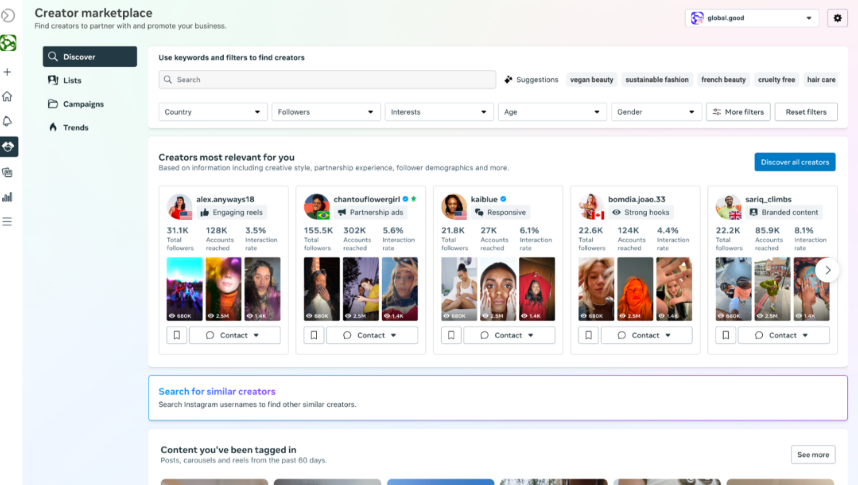
The Creator Marketplace makes it easy to find the right creators for your brand, whether you're searching by interest, by handle, or looking for creators who already care about your brand. It surfaces authenticated creator demographic, audience, and engagement data directly in-platform, no third-party tools needed.
Key Discovery Features
- Recommendations: Shows you creators who may be a fit for your brand, based on creative style, partnership experience, follower demographics, and more.
- Search: Use the keyword search bar or AI keyword suggestions. Search by username or apply filters by interaction rate, age, gender, location, or interests.
- Follows & Tags: Shows creators who have followed your profile or tagged your brand in their content — warm leads for potential partnerships.
Search and Filter Creators
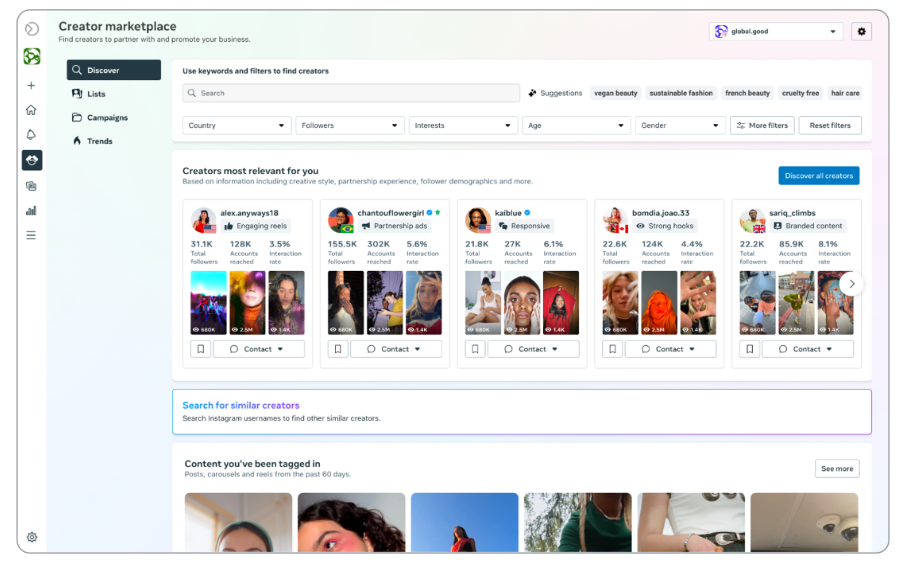
When you first open the Discover tab, you'll see personalized recommendation rails for your brand. From there, use the search bar to find creators by keyword or username, or use the AI keyword suggestions shown at the top.
NEW: Creator recommendations are now ads-focused, the platform surfaces creators predicted to drive the best performance in ad campaigns.
Filter by Creator vs. Filter by Audience
You can narrow results using two types of filters:
1. Filter by Creator
- Creator gender
- Creator location
- Creator age
- Creator interests
- Follower count range
- Verified accounts only
- Featured in paid ads
2. Filter by Audience
- Audience gender
- Audience age range
- Audience countries
- (Based on accounts engaged in the last 30 days)
You can combine creator and audience filters to narrow your search, but the more filters you add, the smaller your creator pool will be!
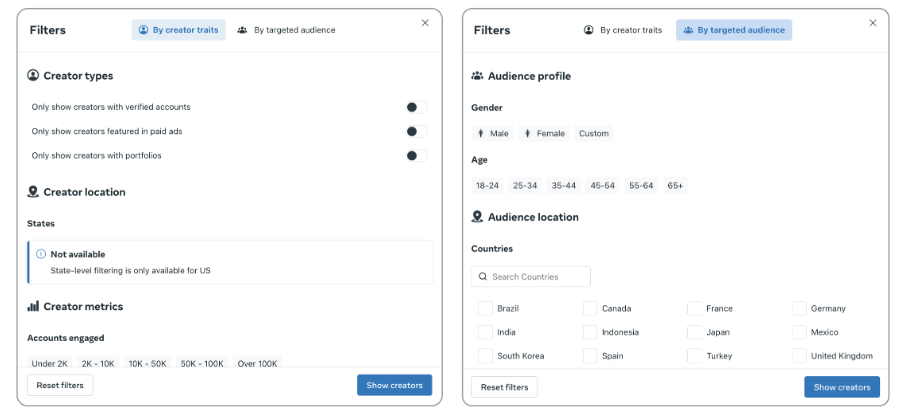
NOTE: Creator interests are specified by the creator themselves when they onboard to the Creator Marketplace.
You can also sort results by Relevance or Followers using the Sort By button in the top-right corner.
Follows, Tags & Interested Creators
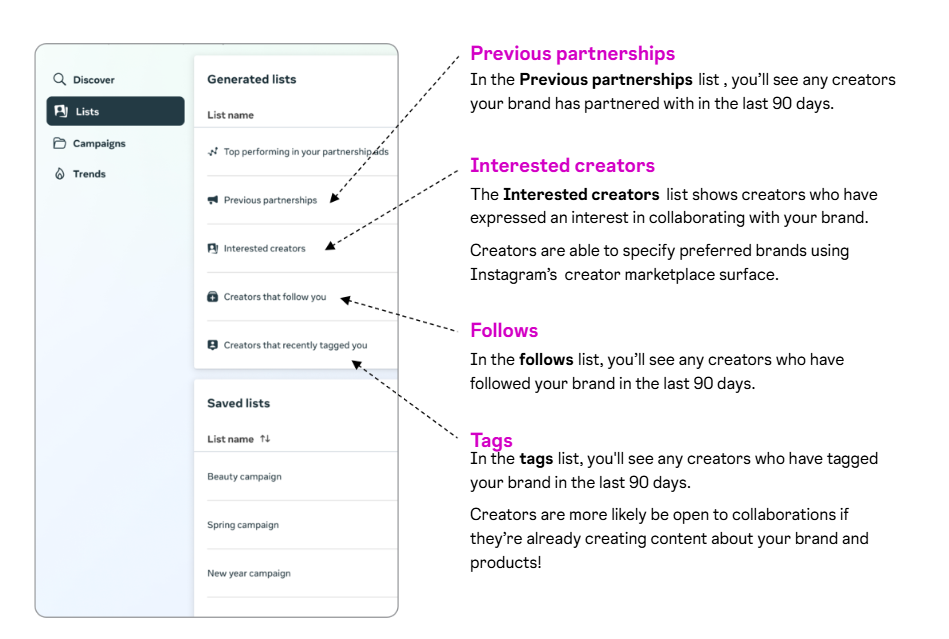
The Lists section includes automatically generated lists to help you spot warm leads:
- Previous Partnerships: Creators your brand has already partnered with in the last 90 days.
- Interested Creators: Creators who have expressed interest in collaborating with your brand via the Creator Marketplace.
- Follows: Creators who have followed your brand's profile in the last 90 days.
- Tags: Creators who have tagged your brand in their content in the last 90 days.
Creators who already tag you are more likely to be open to collaborations, they're already creating content about your brand!
NEW Playable Reels Cards: Creator results now feature Reels content and will automatically play when you hover over each video, great for quickly assessing style and quality.
Chapter 3: Creator Profile & Portfolio
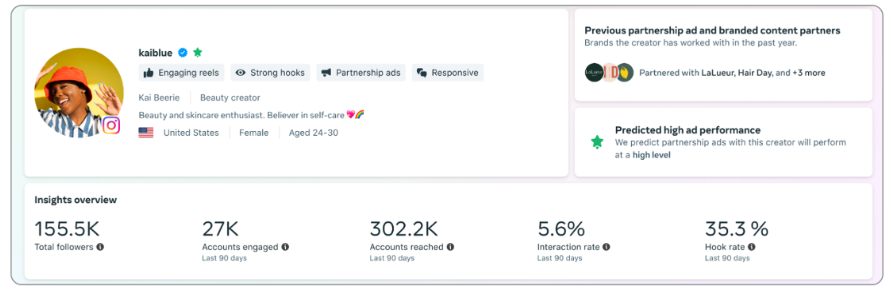
When you click on a creator in the marketplace, you'll see their full profile, designed to help you assess whether they're a good fit for a potential partnership.
NEW Creator Badges: Creator profiles now display badges if the creator has experience with Partnership Ads or Branded Content, making it easier to gauge their experience at a glance.
Understanding the Creator Profile
Here's what you'll see on each creator's profile:
- Top section: Handle, name, bio, location, gender, age range, self-specified interests, and past partners.
- Content preview: A snapshot of their Partnership Ads, Branded Content, and recent posts. Filter by Reels using the toggle.
- Insights overview: Total followers, accounts engaged, accounts reached, interaction rate, and hook rate.
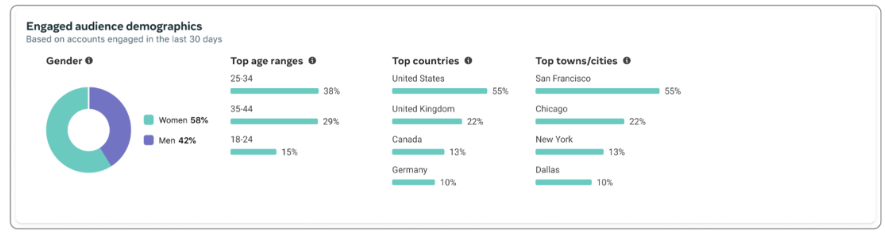
- Audience demographics: A breakdown of engaged accounts by gender, age, and top countries/cities.
Understanding the metrics:
- Hook Rate: A creator's 3-second view rate for Reels; measures how captivating their opening content is.
- Interaction Rate: Reels views with a like, comment, share, or save; expressed as a % of initial views.
A creator's recent posts give you a snapshot of their content style, useful for checking brand fit before reaching out.
Understanding the demographic breakdown of a creator's audience helps you assess the likelihood of your content reaching your desired target group.
Similar Creators
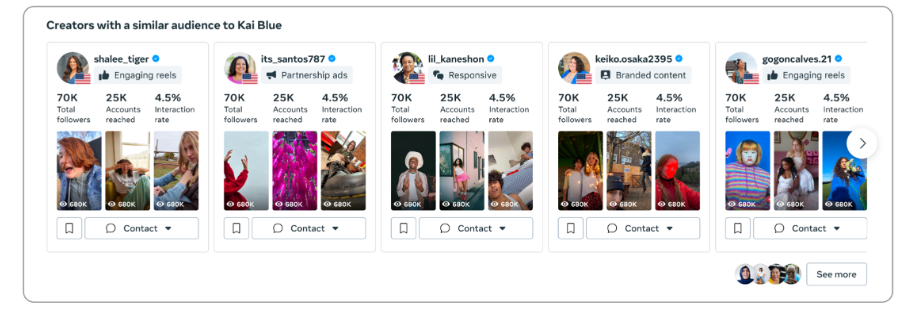
When viewing a creator's profile, the marketplace will also show you creators with a similar audience, making it easy to expand your shortlist once you've found a creator you like.
Creator Portfolio
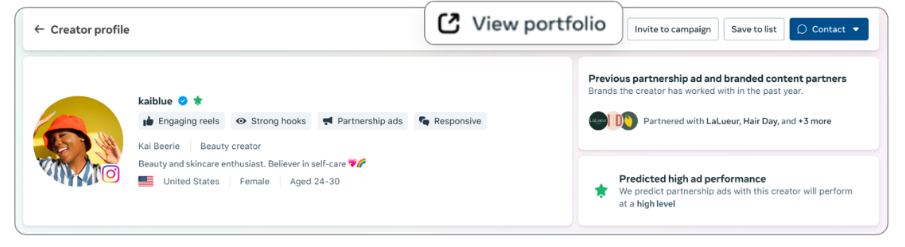
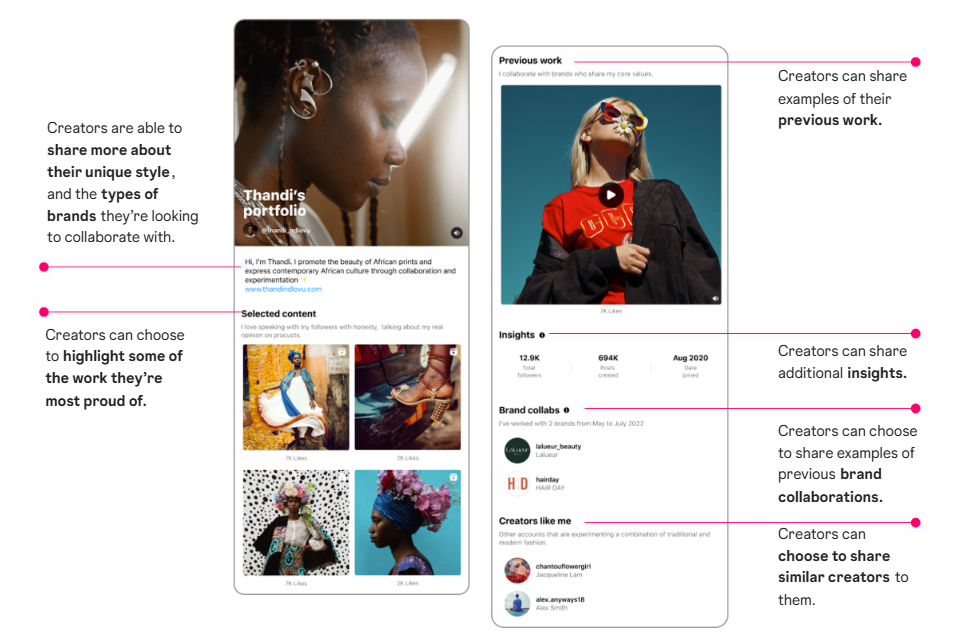
If a creator has set up a Creator Portfolio, you can view it by clicking View Portfolio at the top of their profile. A portfolio lets creators curate their best work to showcase to brands. A portfolio may include:
- Unique Style & Brand Fit: Creators share their style, personality, and the types of brands they want to collaborate with.
- Selected Content: Highlighted posts they're most proud of.
- Key Stats: Total followers, posts created, and date joined.
- Brand Collaborations: Examples of previous brand partnerships.
- Similar Creators: Other creators with a similar audience or style.
- Previous Work: Examples of content created for past campaigns.
A creator portfolio gives you much deeper insight into a creator's personality, tone, and style, and is one of the best ways to assess brand fit before reaching out.
Chapter 4: Using Creator Lists
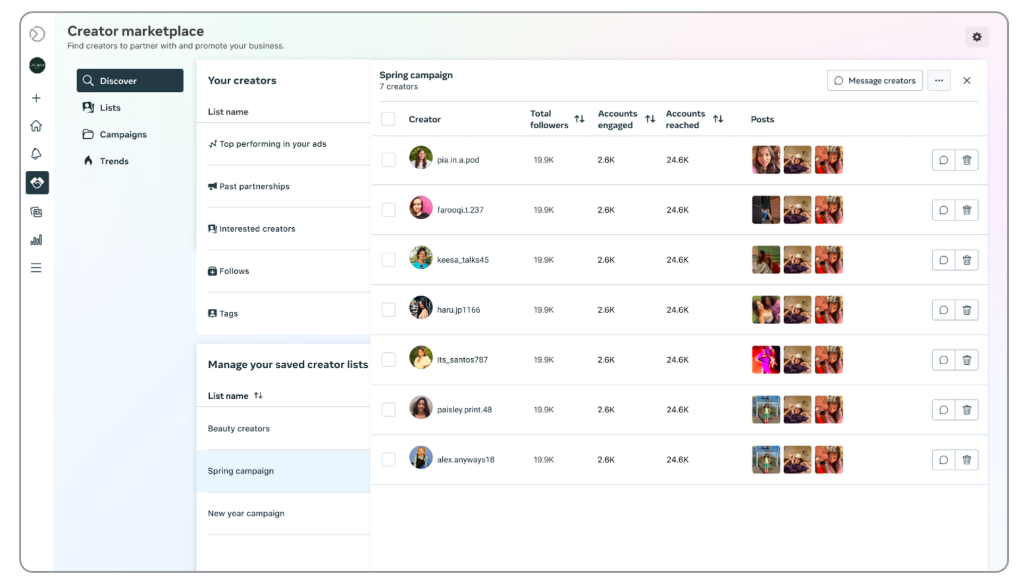
No more spreadsheets. With Creator Lists, you can save creators you've discovered directly inside the tool and organize them for future campaigns.
Managing Your Lists
- Click Lists in the top toolbar to access your saved lists.
- Click New List and give it a name (e.g., "Spring Campaign").
- From the Lists panel, you can also Rename or Delete any list.
- Within a list, you can view saved creators and Message up to 20 creators at a time. Or use a list to invite a group of creators to a campaign all at once.
Lists synchronize across all admins on the account, perfect for team collaboration on creator selection. And they are great for organizing creators by campaign, product launch, or promotion, making comparisons much easier later on.
Adding Creators to Lists
You can add creators to lists in several ways:
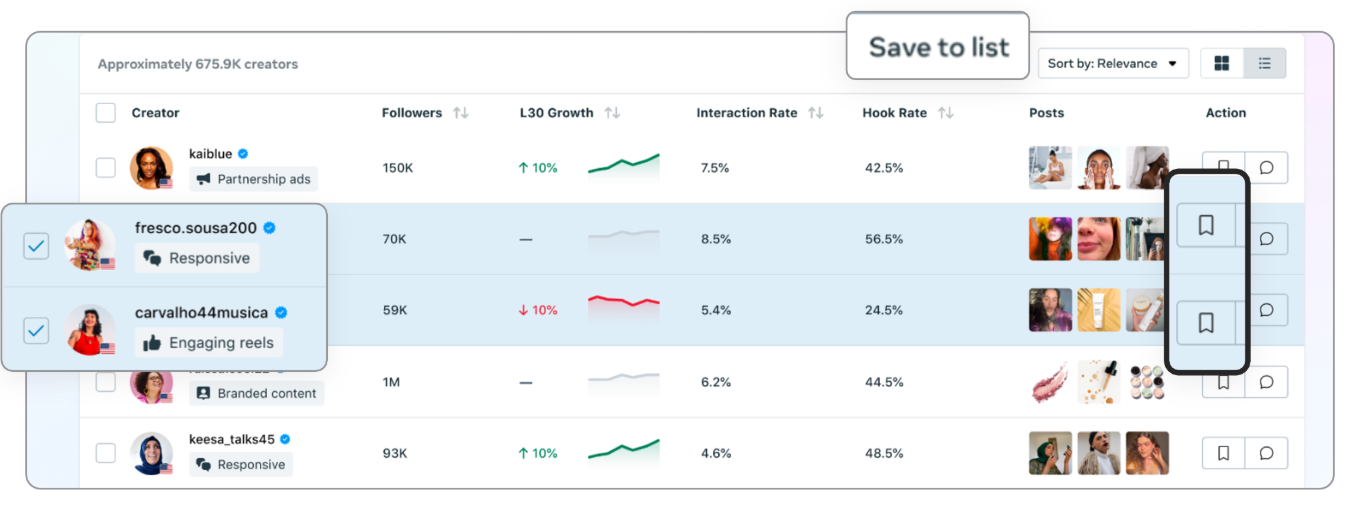
- In list view: Select multiple creators and click Save to List to add them in bulk.
- In card view: Click the bookmark icon on a creator's card to add them individually.
- From a creator's profile: Click Save to List at the top of the profile page.
Once you've applied relevant filters, add all matching creators to the same list in one go, this makes it much easier to compare candidates for a partnership later.
Chapter 5: Collaboration & Campaigns
Once you've found creators to partner with, you can message them directly or create a campaign and send them a formal project brief.
About Campaigns & Projects
- Campaign: A container to track all creator content for a specific advertising campaign (e.g., "Holiday Sale" or "Makeup Launch").
- Project: Lives within a campaign. Share details with creators: content type, payment offered, and any additional compensation like gifted products.
- Project Brief: Send directly to specific creators, or make it discoverable so qualifying creators can apply on their own.
-
The Partnership Messages Inbox
Once you've onboarded to the Creator Marketplace, you gain access to a Partnership Messages inbox, a dedicated folder for creator communications.
The Partnership Messages inbox lives as a folder within your main inbox on Meta Business Suite. Navigate there to find and reply to creator messages.
How to Create a Campaign
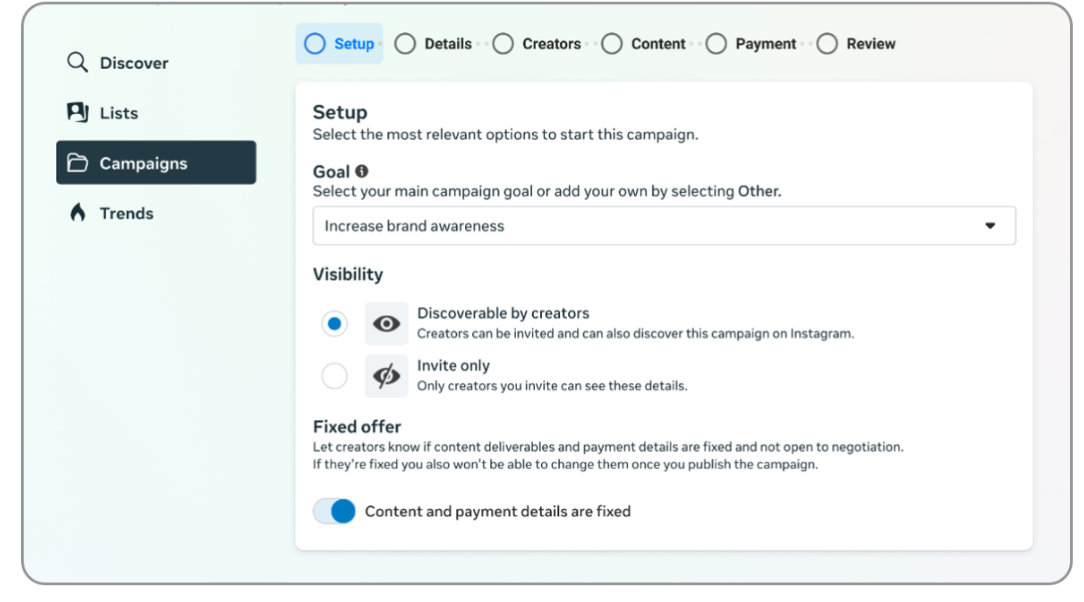
- Click Campaigns in the left-hand toolbar.
- Click Create Campaign.
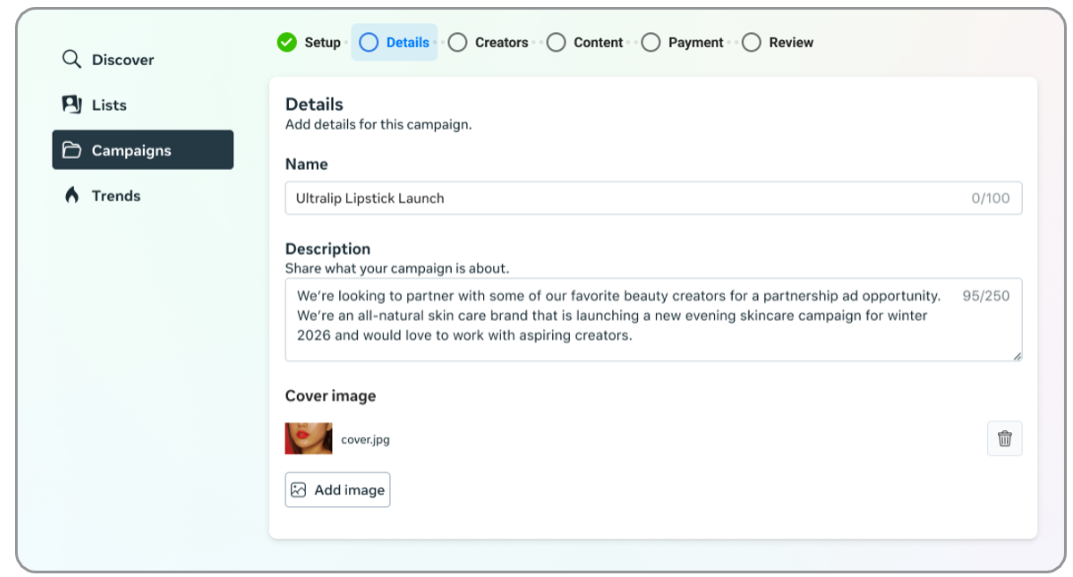
- Under Setup, specify your Goal, whether to make the campaign discoverable by creators (Discoverability), and whether your offer is fixed or flexible (Fixed Offer).
- Click Next.
- Enter a Name, Description, and optionally a Cover Image for your campaign. The cover image is shown to creators when they receive your project details.
- If you selected Discoverable by Creators, set criteria for the creators (gender, age, follower count) and target audience (gender, age, countries) you're looking for.
- Click Next.
- Specify content details: content type (Story, Post, Reel), content description, registration deadline, and posting date range.
- Click Next.
- Outline the compensation: payment for content creation, payment for ad boost permission (if applicable), and any free products to include.
- Click Next, then review all campaign details on the final page.
- Click Publish if everything looks correct.
Adding a cover image makes your project stand out and look more appealing to creators!
When writing content details, be specific about your requirements, but don't be too prescriptive. Creator content performs best when it's authentic and in the creator's own style. Let the creator be the creative!
Inviting Creators to a Campaign
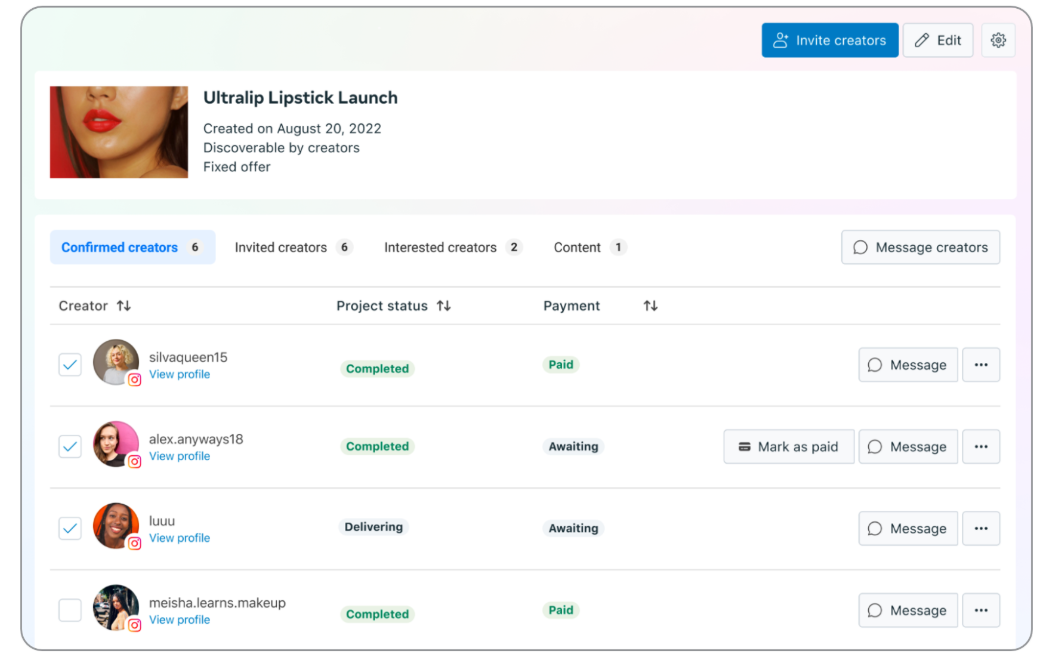
- Go to your campaign page and click Invite Creators.
- Browse your saved creator lists, select the creators you want to invite, and click Invite. You can customize the project brief per creator if needed.
- Click the … icon next to any creator to view or edit their project details, review content they've posted, or view their portfolio.
- Click the Message button to contact a creator directly.
Your campaign page will show all Confirmed, Invited, and Interested creators in separate tabs.
Once a creator completes your project, use Mark as Paid to update their payment status. It's up to you to agree on payment details in advance and pay the creator directly when the work is done, Meta does not handle payments.
Take the Guesswork Out of Creator Campaigns
Building campaigns is easy, but making them profitable requires a data-driven approach. Growth Collective has managed over $100M+ in profitable spend for leading DTC brands. Let us handle the strategy, execution, and scaling for you. Book your strategy call here.
Chapter 6: Frequently Asked Questions
Where can I find Instagram's Creator Marketplace?
It's available through Meta Business Suite at business.facebook.com. Click Creator Marketplace in the left-hand navigation, or access it via a direct link.
I've been granted access, but I can't see the Creator Marketplace.
Make sure you're an admin on the business connected to the Instagram handle that's been granted access, and that the Instagram handle and Facebook Page are linked in the Edit Profile section of the Instagram App, or within Business Assets in Meta Business Suite.
Who on my team has access?
Anyone with permission to manage the Facebook Page connected to the Instagram account will have access. You can check this in Meta Business Suite under Business Settings.
How do I leave the Creator Marketplace?
Navigate to Settings in the top right corner of the Creator Marketplace. Under Opt Out of Creator Marketplace, click Opt Out.
Is there a limit to how many agencies I can grant access to?
No, there is no limit to the number of agencies you can give permissions to.
Where do messages sent from the Creator Marketplace go?
Messages land in the creator's Instagram DMs inside a dedicated Partnership Messages folder. Creator replies land in your brand's Partnership Messages folder, accessible through Meta Business Suite.
I only want to do gifting deals, can I specify no cash payment?
At this time, brands are required to specify a monetary compensation for all deals on the Creator Marketplace. Contracts and payments happen outside the app.
Does Meta handle payments?
No. Brands are responsible for all payments and should agree on payment details with creators before the project starts. The marketplace lets you track payment status by marking projects as paid.
How do I remove an agency's ability to manage my campaigns?
Manage agency permissions on the Facebook Page in Meta Business Suite under Business Settings.
Can I share creator lists with my agency?
Currently, it's not possible to share creator lists across different accounts. However, you can download a list and share it outside the tool.
Will I see messages and campaigns my agency sends?
Yes, if messages and content permissions have been granted to your agency, all activity in the Creator Marketplace associated with the linked Instagram account will be visible to anyone with access on the brand's behalf.
Can agencies use the Creator Marketplace without being given permissions by a client?
Yes. Agencies can onboard through their own Instagram account (Option 2 above) without needing client permissions.
Which countries have access to the Creator Marketplace?
For eligible businesses, the Creator Marketplace is available in all countries (with some limited exceptions). Businesses can find creators from 18 countries today.
Do the metrics reflect both Facebook and Instagram?
No, the metrics surfaced reflect only Instagram metrics, as the full Creator Marketplace experience is currently only available on Instagram.
What do agencies need to access the Creator Marketplace?
Agencies need: (1) a linked Facebook Page and Instagram account, and (2) a verified business portfolio. Facebook and Instagram business assets can be added to the verified business portfolio.
--
Based on Instagram's Creator Marketplace Setup Guide, from Meta. All information sourced from the official guide.